
How to Put Handwriting on Your Own Photo
Upload your photo, then choose one way to fit the writing: let AI do it for you, or adjust it by hand.
By Handwriting AI Team · · 4 min read
In this guide
From a blank photo to a handwritten note
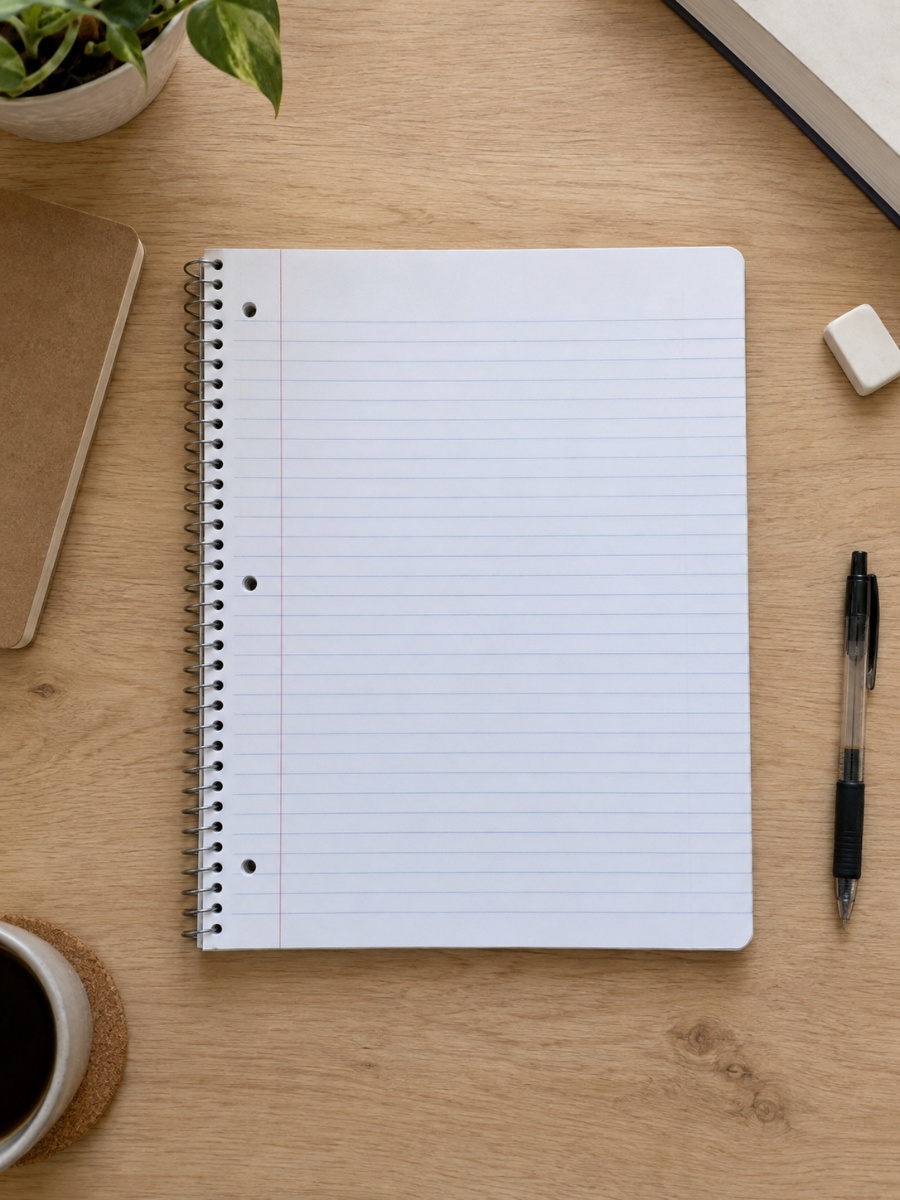
We use the built-in ruled notebook photo below. Download it to follow along, or use a clear photo of your own paper.
Before you start
After uploading, choose one of the two options below. AI fits the writing area, angle, line spacing and letter size for you. Manual controls let you set the same things yourself. Then check the preview and use the photo.
Start
Upload your paper photo
Open the editor, type or paste a short note, and choose a font. Under Paper, choose Photo, then Add photo. Select a JPG, PNG or WebP. The adjustment window opens with your text on the photo.
Use a sharp photo with the whole writing area visible. For this example, download the notebook photo below and select it as your upload.
Option 1 · AI
Fit the writing automatically with AI
Click Auto-fit with AI at the top left. Read the confirmation, then start. Wait for the suggested writing areas to appear.
AI finds space for your text and adapts the angle, perspective, line spacing and letter size to the photo. You keep the handwriting font you chose in the editor.
Check that the text stays on the paper and follows its lines. If it looks right, go straight to Finish. You can still tweak the result with the manual controls if needed.
Happy with the AI fit? You can skip the manual option.
Go to the final checkOption 2 · Manual
Or adjust the writing area yourself
Choose this option to set the fit by hand. Drag the box to move it, then drag each corner to match the paper’s angle. Keep the box away from edges, binding holes, objects and decorations.
Change Line spacing until the green guides follow the paper’s lines. Then change Font fit to make the letters bigger or smaller between those lines.
Use + to zoom in and Fit to see the whole photo. For an open notebook, use Add area for the second page; text fills the numbered areas in order. When the fit looks right, continue to Finish.
Finish
Use the photo and check the finished note
Click Use this photo to return to the editor. Check the words, ink and page edges in the preview. If your note spans several pages, inspect each page before choosing JPEG, ZIP or PDF.
Below is the finished example and a close-up of the writing on the ruled lines.
Reproduce this example
Paste this short note before uploading the photo so you can see the writing while you adjust it.
A little plan for today
Take a walk outside.
Write down one good idea.
Make time for a friend.
Leave room for something new.
- Font
Caveat
Use a short note so you can easily check the first few lines.
- Ink
Blue · #244f9e
Easy to see against the pale paper.
- Line spacing / Font fit
About 3.3% / 72% for this photo
Start here for this example. Match the lines on your own photo by eye.
What this example covers
- Manual adjustment and preview are free. AI auto-fit and photo downloads are available on Pro and Premium; auto-fit uses 5 AI credits per photo.
Questions
The text slips off the lines farther down the page. What should I change?
Change Line spacing. If every line is off by the same amount, move the box up or down instead. Use Font fit only for letter size.
Can I use a photo without ruled lines?
Yes. Put the box inside the blank area, leave clear margins, and choose a line spacing that looks comfortable in the preview.
Try it with your own photo
Paste a few lines, add your photo, and fit the writing to the page.
Open the handwriting editor